By executing below SQL Query, you will get the list of connected users with the last running SQL Statement by each user...
Who is connected
---------------------
CREATE TABLE #WHO_TEST(
[spid] [int] NULL,
[ecid] [int] NULL,
[status] [nvarchar](50) NULL,
[loginame] [nvarchar](50) NULL,
[hostname] [nvarchar](500) NULL,
[blk] [nvarchar](50) NULL,
[dbname] [nvarchar](500) NULL,
[cmd] [nvarchar](500) NULL,
[request_id] [int] NULL
)
insert into #WHO_TEST
EXEC sp_who;
SELECT *,(SELECT TEXT FROM sys.dm_exec_sql_text((select sql_handle FROM sys.sysprocesses WHERE spid = a.spid))) SQL_CMD
from #WHO_TEST a
Drop Table #WHO_TEST
Showing posts with label SQL Server Database. Show all posts
Showing posts with label SQL Server Database. Show all posts
Friday, November 16, 2018

Wednesday, August 29, 2018
Compress/Shrink SQL Server Database/Table/Index, tSql
When our database size was too large, we need to compress or shrink data to reduce the disk/file/database size. I will provide some guidance to reduce the database/index size to the minimal which ensure the high availability of disk space.
I will discuss below points to Compress as much as possible ...
I will discuss below points to Compress as much as possible ...
- Find the Tables need to Compress
- Estimate the Compression rate/size.
- Compress the Table Data in Page Level. (it can be in ROW level)
- Compress the Index size in Page Level. (it can be in ROW level)
- Compress/Shrink full database.
NOTE: If any table has Sparse Column, we can't compress that table/index directly.
1. First of all, we have to find the affected/large in size Tables. Use below SQL to Find the large Tables.
----------------------------------------------------
-- Determine which tables to compress
SELECT
t.NAME AS TableName,
i.name as indexName,
sum(p.rows) as RowCounts,
sum(a.total_pages) as TotalPages,
sum(a.used_pages) as UsedPages,
sum(a.data_pages) as DataPages,
(sum(a.total_pages) * 8) / 1024 as TotalSpaceMB,
(sum(a.used_pages) * 8) / 1024 as UsedSpaceMB,
(sum(a.data_pages) * 8) / 1024 as DataSpaceMB
FROM
sys.tables t
INNER JOIN
sys.indexes i ON t.OBJECT_ID = i.object_id
INNER JOIN
sys.partitions p ON i.object_id = p.OBJECT_ID AND i.index_id = p.index_id
INNER JOIN
sys.allocation_units a ON p.partition_id = a.container_id
WHERE
t.NAME NOT LIKE 'dt%' AND
i.OBJECT_ID > 255 AND
-- i.index_id <= 1
GROUP BY
t.NAME, i.object_id, i.index_id, i.name
ORDER BY
object_name(i.object_id)
----------------------------------------------------
2. After getting the table and index list; Now we have to estimate the size compression, how much size we can reduce.
Use below SQL to check the reduced size.
----------------------------------------------------
-- For Table Data Compression
EXEC sp_estimate_data_compression_savings
@schema_name = 'dbo',
@object_name = 'DATABASE_NAME',
@index_id = NULL, -- For Table Data Compression
@partition_number = NULL,
@data_compression = 'Page' ;
-- For Index Data Compression
EXEC sp_estimate_data_compression_savings
@schema_name = 'dbo',
@object_name = 'DATABASE_NAME',
@index_id = 1, -- Index ID -- For Index Data Compression
@partition_number = NULL,
@data_compression = 'Page' ;
----------------------------------------------------
3. After making the final list of Table, we can now compress the table using below SQL
----------------------------------------------------
ALTER TABLE dbo.TABLE_NAME REBUILD PARTITION = ALL WITH (DATA_COMPRESSION = PAGE);
----------------------------------------------------
4. After Table Compression, we now can compress the Indexes (one by one) ..
----------------------------------------------------
ALTER INDEX INDEX_NAME ON dbo.TABLE_NAME REBUILD PARTITION = ALL WITH (DATA_COMPRESSION = PAGE);
----------------------------------------------------
5. Finally we can Shrink/Compress the full database .. use below SQL ..
Bellow command have some other parameters, for details please check DBCC SHRINKDATABASE (Transact-SQL)
----------------------------------------------------
DBCC SHRINKDATABASE(N'DATABASE_NAME');
----------------------------------------------------
NOTE: You may use the procedure sp_spaceused to track the data size
all above is the example which I did for a database of 1 TB. You can choose your own compression strategy to compress the database or files.
Use below SQL to check the reduced size.
----------------------------------------------------
-- For Table Data Compression
EXEC sp_estimate_data_compression_savings
@schema_name = 'dbo',
@object_name = 'DATABASE_NAME',
@index_id = NULL, -- For Table Data Compression
@partition_number = NULL,
@data_compression = 'Page' ;
-- For Index Data Compression
EXEC sp_estimate_data_compression_savings
@schema_name = 'dbo',
@object_name = 'DATABASE_NAME',
@index_id = 1, -- Index ID -- For Index Data Compression
@partition_number = NULL,
@data_compression = 'Page' ;
----------------------------------------------------
3. After making the final list of Table, we can now compress the table using below SQL
----------------------------------------------------
ALTER TABLE dbo.TABLE_NAME REBUILD PARTITION = ALL WITH (DATA_COMPRESSION = PAGE);
----------------------------------------------------
4. After Table Compression, we now can compress the Indexes (one by one) ..
----------------------------------------------------
ALTER INDEX INDEX_NAME ON dbo.TABLE_NAME REBUILD PARTITION = ALL WITH (DATA_COMPRESSION = PAGE);
----------------------------------------------------
5. Finally we can Shrink/Compress the full database .. use below SQL ..
Bellow command have some other parameters, for details please check DBCC SHRINKDATABASE (Transact-SQL)
----------------------------------------------------
DBCC SHRINKDATABASE(N'DATABASE_NAME');
----------------------------------------------------
NOTE: You may use the procedure sp_spaceused to track the data size
all above is the example which I did for a database of 1 TB. You can choose your own compression strategy to compress the database or files.
Thursday, August 16, 2018
Import CSV file to SQL Server, Mule 4 (MuleSoft)
To Import a CSV file (with header) to the SQL Server database, I will take an HTTP Listener to call the process then read the CSV file and insert to DB as BULK INSERT.
To do this, I will follow the below steps ...
 |
| Import CSV File to SQL Server DB |
To do this, I will follow the below steps ...
- add a Flow of HTTP Listener
- add a Fiel Read Component
- add a Bulk Insert component
Before Start, our example CSV file will look like as below formate
CSV file Contant (DataLoad.csv)
-----------------------
ID,NAME
1,Azam
2,Saiful
Create a Blank Mule Project First :)
STEP 1: Add HTTP Listener and Configure it to invoke from browser or postman.
Double Click on HTTP Listener component to Configure
Provide a Name for your HTTP Listener - in my case, /insertcsv
Provide the Path as "/yourpath" - in my case, /insertcsv
Click on "+" Button to Create and Configure the HTTP Listener Connection
Provide a Name for your Connector - in my case, HTTP_Listener_config
Provide the Host IP - in my case, I used 0.0.0.0 to invoke from anywhere of my network
Provide the Port Number - - in my case, 8081
Set Base Path as "/"
Test the Connection to check the port is open to use - Click on "Test Connection..." Button
Click "OK"
Add a Response Message to Display in Browser, if everything works fine - in my case, the message is "Data Inserted ..."
 |
| HTTP Listener Configuration |
 |
| HTTP Response |
STEP 2: Add File-Read Component and Configure it to Read the CSV file.
Provide the Display name - in my case, Read CSV File
To add a Connector Configuration, Click "+" button
Give a name for this Configuration - "File_Config"
Set Working Directory (where is your file located) - "E:\something"
Test the Connection and Click OK
Finally, provide the File Name OR Fully Qualified Name - "DataLoad.csv"
 |
| File-Read Component Configuration |
STEP 3: Add a Bulk Insert Component and Configure it to get data and insert.
Now, First add a Connection of SQL Server Database.
Click the "+" button of "Connector Configuration".
Give a Connection name - Database_Config
Choose "Microsoft SQL Server Connection" as Connection
If required, Click on "Modify dependency" then click "Install" then click "Finish"
Now provide Connection details ...
Host Name - SQL Server instance name OR IP
Port - 1433 (default port of SQL Server)
User - SQL Server User
Password - Password of above SQL Server User
Database Name - which database you want to import CSV File.
 |
| SQL Server Connection Conf |
After Create the Connection, we have to add INSERT SQL and Parameter to read the Payload message (data object)
Add below Insert SQL at "SQL Query Text:" section/field
----------------------------------
insert into dbo.DataLoad (ID,NAME) values (:IN_ID,:IN_NAME)
----------------------------------
Here :IN_ID and :IN_NAME are the parameters for this INSERT command
After adding the SQL text, now we will add a MAP code to pass the value to these parameters.
Add below code to "Input Parameters:" section/field ...
----------------------------------
#[%dw 2.0
output application/json
---
payload map {
'IN_ID': $.ID,
'IN_NAME': $.NAME
}]
----------------------------------
here :IN_ID and :IN_NAME are the parameter of INSERT Command.
 |
| Input Parameters and SQL Query Text |
Thats All :)
now run the project/application - Right click on the Flow and select "Run Project Dataloadcsv"
once the application is run, open the browser and hit the url - "http:/localhost:8081/insertcsv"
you will get the response message "Data Inserted ..." once all done.
Please feel free to comments.
Tuesday, March 27, 2018
Connect SQL Server and Execute Procedure [get data-set/rows/return value] from C#.NET
I will connect to SQL Server database and execute a procedure to get data.
a procedure can provide data by Return or as a Select statement.
I have discussed the full process step-by-step and also added the full C# code/class at the bottom of this post!
here is the DBO.Test_Proc , which i will call and get data & return value.
-------------------
Create Procedure dbo.Test_Proc @param1 int = null, @param2 varchar = null
as
begin
select @param1 as param1 , @param2 as param1 ;
return isnull(@param1,-50);
end
------------------
now we have to call this procedure to get data from the select statement and from return statement as well.
step 0: use package System.Data.SqlClient = using System.Data.SqlClient;
step 1: First we have to connect to SQL server
step 2: Prepare the SQL command to call the procedure
step 3: Execute & Read data rows and return value.
STEP 1: Connect to SQL server
use below code to connect to SQL Server using SQL_Server user..
------------------
SqlConnection cnn;
string sqlConnectionString = "Data Source=SERVER_ADDRESS;Initial Catalog=" + "DB_NAME"
+ ";User ID=" + "USER_NAME" + ";Password=" + "PASSWORD";
try
{
cnn = new SqlConnection();
cnn.ConnectionString = sqlConnectionString;
cnn.Open();
Console.WriteLine("Connection Open");
}
catch (Exception e)
{
Console.WriteLine(e.Message);
}
-----------------
STEP 2: SQL command to call the procedure
use below code to prepare the SQL Command to execute using above SQL Connection (cnn)
--------------------------
SqlCommand cmd;
string[] paramN = { "param1", "param2" };
string[] paramV = { "10","Name"};
cmd = new SqlCommand(sqlCommand, cnn);
cmd.CommandType = CommandType.StoredProcedure;
// add parameter to pass value to DB Proc
// 1st parameter = param1
if (!string.IsNullOrEmpty( paramV[0]))
cmd.Parameters.AddWithValue("@"+paramN[0], paramV[0]);
// 2nd parameter = param2
if (!string.IsNullOrEmpty(paramV[1]))
cmd.Parameters.AddWithValue("@" + paramN[1], paramV[1]);
// add a return type parameter [only if you required the return value from db proc]
var retParam = cmd.Parameters.Add("@retv", SqlDbType.Int);
retParam.Direction = ParameterDirection.ReturnValue;
--------------------------
STEP 3: Execute the SQL Command (cmd) and Read data rows & return value.
use below code to get data rows from proc and the return value also.
----------------------------
SqlDataReader dr;
// get data rows return by the select of proc
dr = cmd.ExecuteReader();
Console.WriteLine("executed");
while (dr.Read())
{
Console.WriteLine(dr[paramN[0]].ToString() + " -- " + dr[paramN[1]].ToString());
}
dr.close();
//// get return value by the retrun of proc
cmd.ExecuteNonQuery();
var retValue = retparam.Value;
Console.WriteLine(retValue);
---------------------------
---------------------------
OUTPUT
---------------------------
Please check below for the full C# class, i have written for me only :)
//--------------------------------------------------------------------------------\\
using System;
using System.Collections.Generic;
using System.Linq;
using System.Text;
using System.Data;
using System.Data.SqlClient;
namespace FTP_MONITORING_EXE
{
class FTP_MONITORING
{
SqlConnection cnn;
SqlCommand cmd;
SqlDataReader dr;
string sqlConnectionString = "Data Source=SERVER_ADDRESS;Initial Catalog=" + "DB_NAME" + ";User ID=" + "USER_NAME" + ";Password=" + "PASSWORD";
static void Main(string[] args)
{
FTP_MONITORING fm = new FTP_MONITORING();
int conS = fm.getSQLConnection();
if (conS == 0) return;
string[] paramV = { "10","Name"};
string[] paramN = { "param1", "param2" };
int retVal = fm.execProc("dbo.testProc", paramV, paramN);
Console.WriteLine("return = " + retVal);
}
int execProc(string sqlCommand, string[] paramV, string[] paramN)
{
cmd = new SqlCommand(sqlCommand, cnn);
cmd.CommandType = CommandType.StoredProcedure;
for (int i = 0; i < paramN.Length; i++)
{
if (!string.IsNullOrEmpty(paramV[i]))
cmd.Parameters.AddWithValue("@" + paramN[i], paramV[i]);
}
SqlParameter retparam = cmd.Parameters.Add("@retv", SqlDbType.Int);
retparam.Direction = ParameterDirection.ReturnValue;
dr = cmd.ExecuteReader();
Console.WriteLine("executed");
while (dr.Read())
{
string output="";
for (int i = 0; i < paramN.Length; i++)
{
output = output + dr[paramN[i]].ToString() + " -- ";
}
Console.WriteLine(output);
}
dr.Close();
cmd.ExecuteNonQuery();
var retValue = retparam.Value;
Console.WriteLine("retValue = " + retValue);
cmd.Dispose();
return (int)retValue;
}
int getSQLConnection()
{
try
{
cnn = new SqlConnection();
cnn.ConnectionString = sqlConnectionString;
cnn.Open();
Console.WriteLine("Connection Open");
return 1;
}
catch (Exception e)
{
Console.WriteLine(e.Message);
return 0;
}
}
}
}
a procedure can provide data by Return or as a Select statement.
I have discussed the full process step-by-step and also added the full C# code/class at the bottom of this post!
here is the DBO.Test_Proc , which i will call and get data & return value.
-------------------
Create Procedure dbo.Test_Proc @param1 int = null, @param2 varchar = null
as
begin
select @param1 as param1 , @param2 as param1 ;
return isnull(@param1,-50);
end
------------------
now we have to call this procedure to get data from the select statement and from return statement as well.
step 0: use package System.Data.SqlClient = using System.Data.SqlClient;
step 1: First we have to connect to SQL server
step 2: Prepare the SQL command to call the procedure
step 3: Execute & Read data rows and return value.
STEP 1: Connect to SQL server
use below code to connect to SQL Server using SQL_Server user..
------------------
SqlConnection cnn;
string sqlConnectionString = "Data Source=SERVER_ADDRESS;Initial Catalog=" + "DB_NAME"
+ ";User ID=" + "USER_NAME" + ";Password=" + "PASSWORD";
try
{
cnn = new SqlConnection();
cnn.ConnectionString = sqlConnectionString;
cnn.Open();
Console.WriteLine("Connection Open");
}
catch (Exception e)
{
Console.WriteLine(e.Message);
}
-----------------
STEP 2: SQL command to call the procedure
use below code to prepare the SQL Command to execute using above SQL Connection (cnn)
--------------------------
SqlCommand cmd;
string[] paramN = { "param1", "param2" };
string[] paramV = { "10","Name"};
cmd = new SqlCommand(sqlCommand, cnn);
cmd.CommandType = CommandType.StoredProcedure;
// add parameter to pass value to DB Proc
// 1st parameter = param1
if (!string.IsNullOrEmpty( paramV[0]))
cmd.Parameters.AddWithValue("@"+paramN[0], paramV[0]);
// 2nd parameter = param2
if (!string.IsNullOrEmpty(paramV[1]))
cmd.Parameters.AddWithValue("@" + paramN[1], paramV[1]);
// add a return type parameter [only if you required the return value from db proc]
var retParam = cmd.Parameters.Add("@retv", SqlDbType.Int);
retParam.Direction = ParameterDirection.ReturnValue;
--------------------------
STEP 3: Execute the SQL Command (cmd) and Read data rows & return value.
use below code to get data rows from proc and the return value also.
----------------------------
SqlDataReader dr;
// get data rows return by the select of proc
dr = cmd.ExecuteReader();
Console.WriteLine("executed");
while (dr.Read())
{
Console.WriteLine(dr[paramN[0]].ToString() + " -- " + dr[paramN[1]].ToString());
}
dr.close();
//// get return value by the retrun of proc
cmd.ExecuteNonQuery();
var retValue = retparam.Value;
Console.WriteLine(retValue);
---------------------------
---------------------------
OUTPUT
---------------------------
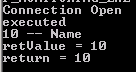 |
| Connect SQL Server and Execute Stored Procedure |
Please check below for the full C# class, i have written for me only :)
//--------------------------------------------------------------------------------\\
using System;
using System.Collections.Generic;
using System.Linq;
using System.Text;
using System.Data;
using System.Data.SqlClient;
namespace FTP_MONITORING_EXE
{
class FTP_MONITORING
{
SqlConnection cnn;
SqlCommand cmd;
SqlDataReader dr;
string sqlConnectionString = "Data Source=SERVER_ADDRESS;Initial Catalog=" + "DB_NAME" + ";User ID=" + "USER_NAME" + ";Password=" + "PASSWORD";
static void Main(string[] args)
{
FTP_MONITORING fm = new FTP_MONITORING();
int conS = fm.getSQLConnection();
if (conS == 0) return;
string[] paramV = { "10","Name"};
string[] paramN = { "param1", "param2" };
int retVal = fm.execProc("dbo.testProc", paramV, paramN);
Console.WriteLine("return = " + retVal);
}
int execProc(string sqlCommand, string[] paramV, string[] paramN)
{
cmd = new SqlCommand(sqlCommand, cnn);
cmd.CommandType = CommandType.StoredProcedure;
for (int i = 0; i < paramN.Length; i++)
{
if (!string.IsNullOrEmpty(paramV[i]))
cmd.Parameters.AddWithValue("@" + paramN[i], paramV[i]);
}
SqlParameter retparam = cmd.Parameters.Add("@retv", SqlDbType.Int);
retparam.Direction = ParameterDirection.ReturnValue;
dr = cmd.ExecuteReader();
Console.WriteLine("executed");
while (dr.Read())
{
string output="";
for (int i = 0; i < paramN.Length; i++)
{
output = output + dr[paramN[i]].ToString() + " -- ";
}
Console.WriteLine(output);
}
dr.Close();
cmd.ExecuteNonQuery();
var retValue = retparam.Value;
Console.WriteLine("retValue = " + retValue);
cmd.Dispose();
return (int)retValue;
}
int getSQLConnection()
{
try
{
cnn = new SqlConnection();
cnn.ConnectionString = sqlConnectionString;
cnn.Open();
Console.WriteLine("Connection Open");
return 1;
}
catch (Exception e)
{
Console.WriteLine(e.Message);
return 0;
}
}
}
}
//----------------------------------------------------------------\\
Thursday, February 4, 2016
SQL Script/tSql to backup SQL Server Database
This script is a parameterized
stored procedure, [dbo].[DB_BACKUP_TO_DISK], to backup SQL Server Database (.BAK). Everything is to call
this procedure with all parameters. See below table to understand parameters.
Parameter
Name
|
Type
|
Description
|
@DBName
|
VARCHAR(500)
|
Put Database name
|
@SaveAs
|
VARCHAR(500)
|
Put output name, is a
bak file name. i.e. TEST_BACKUP.BAK
|
@SaveTo
|
VARCHAR(500)
|
Put full path where BAK
file will be created
|
See below how to call this
procedure…
EXEC [dbo].[DB_BACKUP_TO_DISK]
@DBName = N'TEST_DATABASE',
@SaveAs = N'TEST_BACKUP',
@SaveTo = N'D:\TEST\'
|
Please find the below
script of the described stored procedure …
CREATE PROCEDURE [dbo].[DB_BACKUP_TO_DISK]
@DBName VARCHAR(500)
, @SaveAs VARCHAR(500)
, @SaveTo VARCHAR(500)
AS
BEGIN
SET @DBName = LTRIM(RTRIM(@DBName))
SET @SaveAs = LTRIM(RTRIM(@SaveAs))
SET @SaveTo = LTRIM(RTRIM(@SaveTo))
DECLARE @fileName VARCHAR(4000) = @SaveTo + CASE
WHEN right(@SaveTo, 1) <> '\\'
THEN '\\'
ELSE ''
END + @SaveAs + + CASE
WHEN right(@SaveAs, 4) <> '.BAK'
THEN '.BAK'
ELSE ''
END
BACKUP DATABASE @DBName TO DISK = @fileName
END
|
see also --
--
Wednesday, December 9, 2015
Blank "initial catalog" problem on OLEDB connection string of SQL Server Database
see also -- Got Error: Invalid object name 'master.dbo.spt_values'
As usually we use below connection string to connect to SQL Server using OLEDB provider.
As usually we use below connection string to connect to SQL Server using OLEDB provider.
Data Source=DBSERVER;Initial
Catalog=DB_NAME;Provider=SQLNCLI10.1;Integrated
Security=SSPI;Persist Security Info=False;
What if “Initial Catalog” is blank like below one?
Data Source=DBSERVER;Initial
Catalog=;Provider=SQLNCLI10.1;Integrated Security=SSPI;Persist Security
Info=False;
We know when we create a login user; we have to mansion a database
as default to connect. Due to this, OLEDB provider connects to this default
database in case of missing Initial
Catalog. So that we have to more careful to run DDL using
OLEDB.
To bypass this default fault/mistake, we can create a dummy blank database
and point all users to this blank database as default database.
Subscribe to:
Posts (Atom)